
Step by step guide
Where to report an Incident
You must submit a reportable incident by logging into the new NDIS Commission Portal and clicking the 'Reportable Incidents' tab in the top menu bar.
Saving a draft

You can save your reportable incident as a draft at any time before you submit it.
You can come back at any time to complete and submit your report.
Remember, it must be submitted within the required time frame.
Only you can see your draft reports.
The NDIS Commission or other people from your organisation can’t view them.
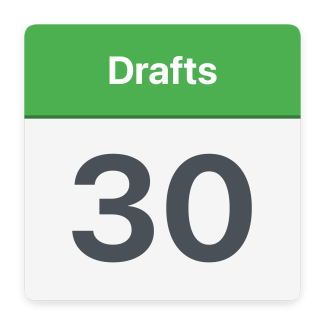
We keep your draft for 30 days.
After 30 days, we delete it.
Step 1: Select your report type

You must tell us if a reportable incident happens while you provide registered NDIS supports and services.

You must report both actual events and alleged events that cause harm to participants.

We will tell you what steps to take if the event is not about NDIS supports and services.
Step 2: Select your incident category

For most incident categories, you must submit an immediate notification form within 24 hours of key personnel becoming aware of the incident.
Key Personnel are the people who manage or lead your business, like a director or CEO.

This is called the 24-hour report.
You will also be required to submit another report, the 5-day report, within 5 business days of the key personnel being advised about the incident.

If the incident involves Unauthorised Restrictive Practices, different rules apply.
Unauthorised Restrictive Practice are specific types of incidents involving the use of a restrictive practice without proper authorisation.
If an incident involves an Unauthorised Restrictive Practice you will be guided to just submit the 5-day report information.
Step 3: Complete the report
You must provide details of the Impacted person.
The Impacted person is the NDIS participant who was harmed or impacted by the incident.

You must tell us what actions you took to keep participants safe.
You must tell us what support and services were being provided at the time of incident.

You must tell us if there were other people involved in the incident.

You can upload extra documents to the report if you have them.
Step 4: Review and submit

The last step of the reportable incident form will allow you to review the information you've captured.

Submit the 24-hour report within 24 hours of the key personnel being informed of the incident.
If you have taken the necessary action and there is no outstanding risk to the participant or others, you can send your 5-day report right away.

You can do this if you have all the information.
Step 5: Start 5-day report
After submitting a 24-hour report, you must submit the 5-day report within 5 business days of the key personnel being notified about the incident.
You can submit a 5-day report by clicking on the 24-hour reportable incident and selecting the 'Start 5 day report' button in the new portal.
This 5-day report asks about the actions you have taken, how you kept people safe, and any remaining risks.
Step 6: Adding new information

When you submit the 5-day report, you cannot change the information.

If you need to tell us more, press the 'Add additional information' button.

If we require more information, we will send you an email to let you know.
You can review our questions in the Requests for Information tab, or directly on the reportable incident.
We may ask you to provide weekly reporting for Unauthorised Restrictive Practices.
You must upload your weekly reports in the new NDIS Commission portal.
Weekly reports are completed inside the Unauthorised Restrictive Practice report record.
An Unauthorised restrictive practice report record contains information about a restrictive practice used on a participant including the weekly reports.
Step 7: Review and outcomes

We will review your report and assess the incident.
You can check the status of your report at any time in the new portal.

We will contact you directly if we need more information.