
Changes and events you need to notify us about
If you’re a registered NDIS provider, you must tell the NDIS Quality and Safeguards Commissioner about certain changes or events. This is a condition of your registration. You must report anything that significantly affects your ability to deliver the supports and services you are registered to provide.
Sections 13 and 13A of the NDIS (Provider Registration and Practice Standards) Rules 2018 set out these requirements. Read more about the types of changes and events you must notify us about.
This guide explains how to use the NDIS Commission Portal to notify us.
Steps to submit a notification
- Log in to the Registered providers portal using the Registrant user role.
- Select My registration.
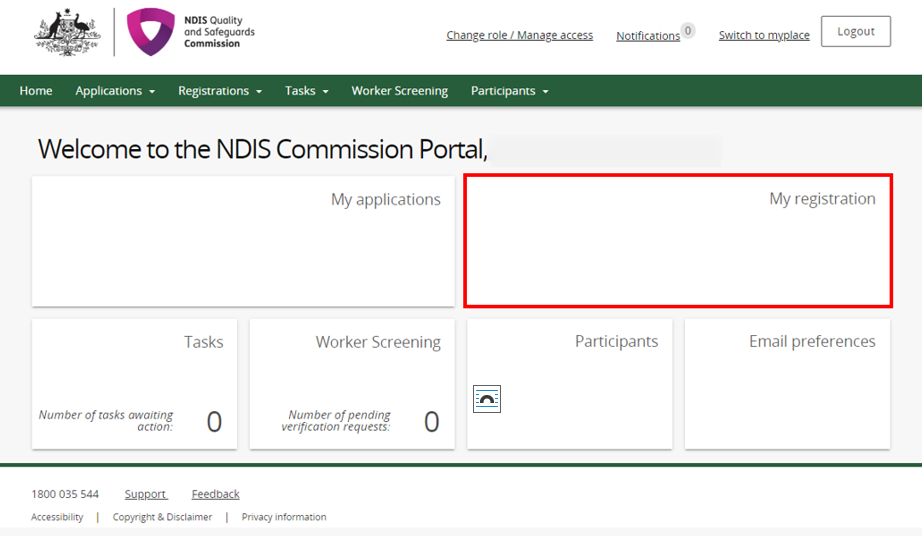
Create your notification
Select Notification of changes and events tab and select Add.
Image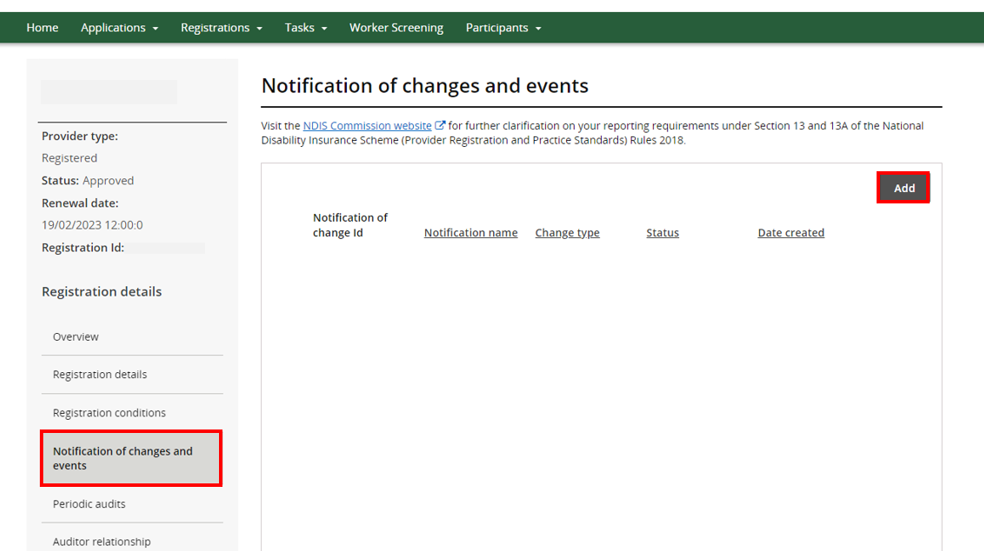
In the Add/update notification of change or events screen, complete the details in the boxes highlighted below. In the Change type box, use the drop-down arrow and select the type of change that is the best match for your change. In the Notification name box, give your notification a name. For example, 'change of CEO' or 'update Key Personnel'.
Image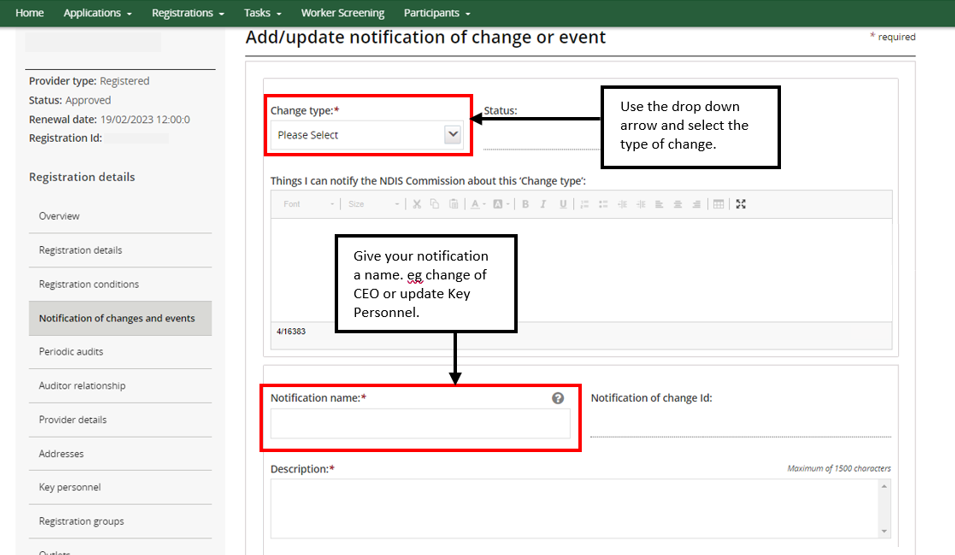
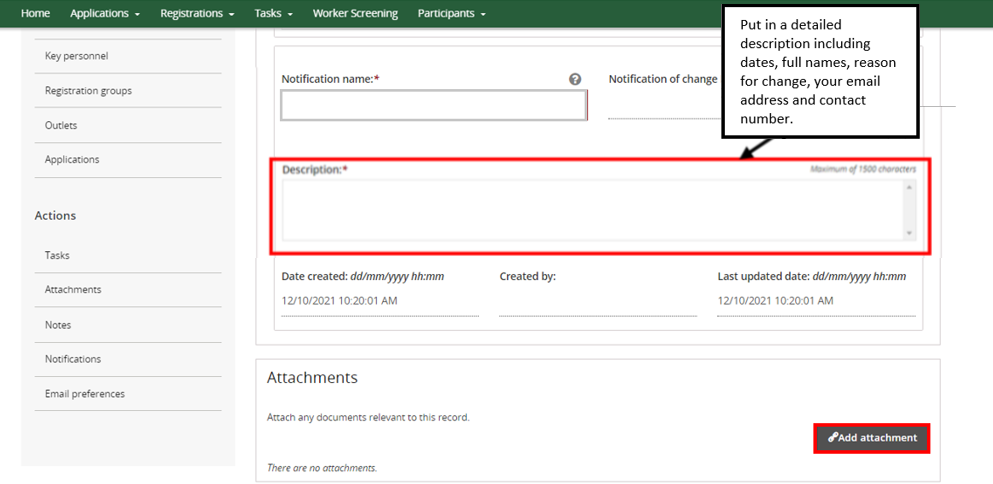
- Enter details of the change in either:
- the Description box (descriptions less than 1500 characters)
- an attachment that you upload in the Add attachment field (longer descriptions).
See what details you need to include for:
- Change of ownership, submitted by the buyer
- Change of ownership, submitted by the seller
- Stopping supports or services to an individual participant
- Stopping supports or services for many participants
- Change to your financial situation
- Other changes or events
Submit your notification
When you are ready to submit your notice, select Submit and return. If you need to exit your notification and come back to it later, select Save. This will save your notice without submitting it.
Image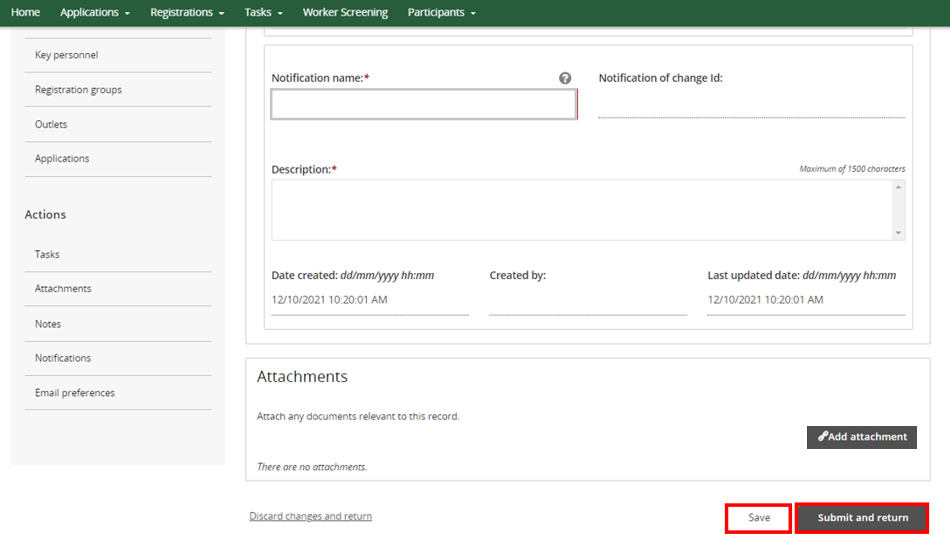
- Once you’ve saved or submitted your notification, you can view it on the Notification of changes and events screen. The status will show you if your notification has been submitted or is in progress.
If you want to see the details of the notification, select Action, then View.
Image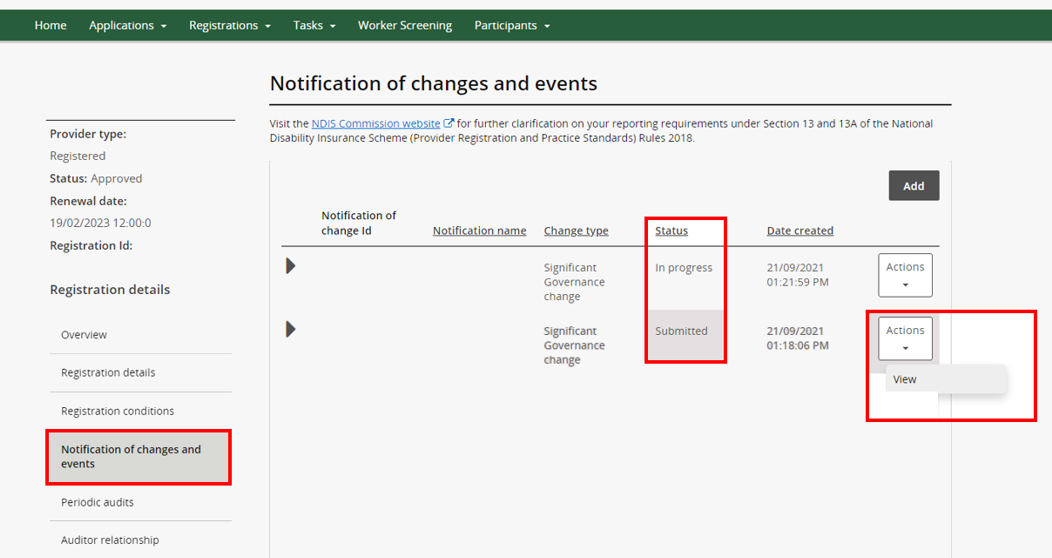
If the status of your notification is In progress, it hasn’t been submitted. To submit it, make sure you are viewing the details of the notification (step 8), then click Submit and return (step 6).
What’s next
We will contact the notifier and/or primary contact by email about the notification. We may ask for further information or documents.
If you need to add more information to the notification, you can view the details of your notification (step 8) and add more attachments (Step 5).